


Frequently Asked Questions
What do I need to control my smart home with a TV remote?
You’ll need a streamer that runs Android TV, Home Assistant installed and configured, and a bit of patience. The process involves integrating your Android TV with Home Assistant and then using a button mapping app on the TV.
How do I connect my Android TV to Home Assistant?
First, enable developer mode and USB debugging on your Android TV. Then, in Home Assistant, navigate to Devices & Integrations, add a new integration, search for ‘Android TV’, enter your TV’s IP address, and submit.
Can I use any button on my TV remote?
While you can technically map any button, it’s best to use a button that isn’t frequently used for its primary function to avoid accidental triggers. The ‘Button Mapper’ app allows you to customize button actions.
What is the ‘unused app’ trick for TV remote automation?
Instead of directly triggering a useful app like Netflix, you can map a remote button to launch a background or system app (like ‘com.google.android.tv.remote.service’) that doesn’t interrupt your viewing. Home Assistant detects the app launch as an event, allowing you to trigger automations without changing your on-screen experience.
Did you ever want to go supercharged on your smart home automations and execute one through your TV remote?
This can be handy – for example – whenever you want to turn off the lights before watching something on Netflix , but all you have at your hand is the remote.
It’s not that complicated, Those are the things you will need:
- A streamer that runs Android TV
- Home Assistant
- A little patience
Let’s get started!
Integrate Android TV to Home Assistant
First, activate developer mode on your Android TV.
After you did it, go into Home Assistant Devices and integrations, add a new integration – search for “Android TV”.
Add the IP of your Streamer/TV and hit “Submit”.

Now, after our Android TV is connected to our smart home, we can control it and see the current active app. We will use this entity to trigger our automation.
The main concept
Let’s say that we want that whenever we open Netflix app – the lights should change. That’s pretty easy – but not really versatile. Sometimes we watch TV during the day; or someone might be in the kitchen – turning all of the lights may annoy him. Or Her. You don’t want to do that.
What’s the solution? A little “hack”. Trigger an unused app that is useless to the user, just to get the state change on home assistant.
I will use this app for triggering my automation – com.google.android.tv.remote.service – but you can use any other app to your liking – by visiting your Android TV entity and see the current active app.
Map your buttons
But how can we open this app? Well, that’s easy – we can use the Button Mapper app and map one of our remote buttons to open it.
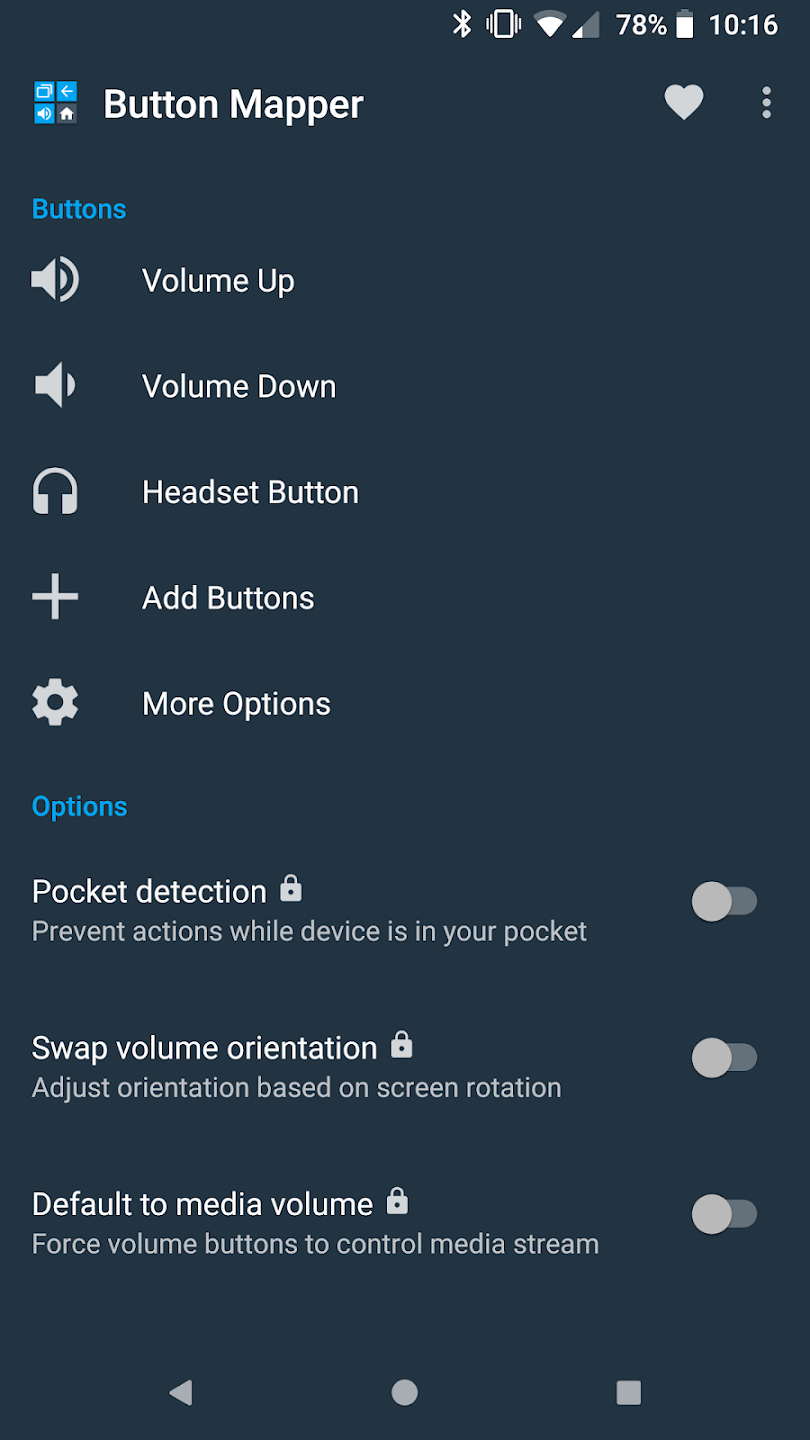
Download the app on your TV and hit “Add Buttons”. Add your button and map it to the relevant app to open.
The final part
Build yourself an automation! My automation will trigger a different automation, which is being used to toggle “Movie mode”
I hope you’ll have fun with this!
Cheers.
Related Articles

Neuro-Adaptive Home: Sensory-Friendly Environments with Home Assistant
The Neuro-Adaptive Home: Creating Sensory-Friendly Environments with Home Assistant The Neuro-Adaptive Home: Creating Sensory-Friendly Environments with Home Assistant In today’s world, technology is increasingly shaping…

Proactive Home Health: Beyond Appliance Monitoring with Home Assistant
Building a Proactive Home Health System: Beyond Appliance Monitoring with Home Assistant The modern home is increasingly becoming an interconnected ecosystem, and at its heart…

Advanced Home Assistant Data Analysis: Smart Home Trends & Insights
Advanced Home Assistant Data Analysis: Uncovering Trends and Insights from Your Smart Home In today’s increasingly connected world, smart homes are no longer a futuristic…
wonderfuil idea! I tried the same but for some reason my HA doesn’t respond adequately when I open up com.google.android.tv.remote.service on my android TV. Sometimes it works, sometimes it doesn’t.
I noticed the pro version of Button Mapper allows for REST api te be used. I believe scens (and other entities) can be activated via REST api “POST”. Too bad I have zero experience in that REST api and my first attempts aren’t succesful yet. It would be the “cleaner” option to map a POST action to a remote button, then ther wouldn’t be a popup of a strange window or something like that.
If i’ll ever find out how to do this correctly i’ll post the info here!
You can do it the easiest via webhooks.
Create a new automation with the webhook trigger and either create a webhook-id or use the one that’s generated.
Fill out the rest of the automation.
In buttonmapper, go to advanced, choose HTT Post request. In the URL write http://your-home-assistant:8123/api/webhook/some_hook_id
And it should work.
Hope this helps